LFO (Low Frequency Oscillator)
Each synth and FX track has its own LFO that can automatically modulate one parameter over time, adding movement and expression to your sounds.
Accessing LFO Settings
Enter Track Mode (press Track)
Select a track
Navigate to page LFO settings page (3rd for synth tracks, 2nd for FX tracks)
LFO Parameters
Rate
Controls the speed of the LFO oscillation.
Lower values = slower modulation
Higher values = faster modulation
When using the Random shape (see below), the LFO Rate controls how fast the
LFO switches from one random value to the other.
Amplitude
Controls how much the LFO affects the target parameter.
0 = No effect
Higher values = More dramatic modulation
There are three modes that control the direction and range of modulation
(Add, Bipolar, Sub). Press A to switch to the next mode, press
B to switch to the previous mode.
Add (Positive)
Modulation adds to the target parameter value. The LFO output ranges from the base value upward.
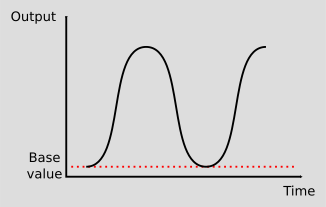
Use this when you want the parameter to increase from its set value. For example, if filter cutoff is set to 50%, the LFO will sweep from 50% up toward 100%.
Bipolar (Center)
Modulation oscillates around the target parameter value, going both above and below.
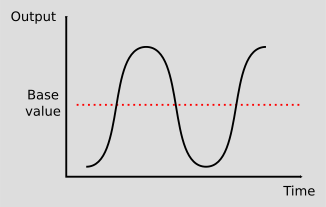
Use this for classic vibrato and tremolo effects where the parameter swings symmetrically around its set value. For example, if pitch is set to a note, the LFO will create vibrato by going sharp and flat around that pitch.
Sub (Negative)
Modulation subtracts from the target parameter value. The LFO output ranges from the base value downward.
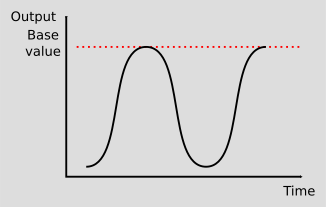
Use this when you want the parameter to decrease from its set value. For example, if filter cutoff is set to 80%, the LFO will sweep from 80% down toward 0%.
Shape
Selects the waveform shape used for modulation:
Shape |
Description |
|---|---|
Sine |
Smooth, natural modulation |
Triangle |
Linear rise and fall |
Ramp Up |
Rising linear ramp |
Ramp Down |
Falling linear ramp |
Expo Up |
Rising exponential ramp |
Expo Down |
Falling exponential ramp |
Random |
Random values |
Shape Modifiers
The Shape setting also includes two important modifiers indicated by small letters:
L - Loop
Enabled with button A
When enabled, the LFO continuously cycles
When disabled, the LFO runs once per note (like an envelope)
When disable and the
Randomshape is selected, a new
S - Sync
Enabled with button B
When enabled, the LFO resets every time a note is played
Useful for consistent modulation at note (like an envelope)
Combined with the
Randomshape and loop disabled, a new random value is generated only when a note is played providing a “sample and hold” effect.
Target
Selects which parameter the LFO modulates:
Target |
Effect |
|---|---|
P1 |
Modulates engine parameter 1 |
P2 |
Modulates engine parameter 2 |
P3 |
Modulates engine parameter 3 |
P4 |
Modulates engine parameter 4 |
Volume |
Modulates track volume (tremolo) |
Pan |
Modulates stereo position (auto-pan) |
LFO Modulation Visualization
On the LFO page, when a target is selected, an LFO visualization bar is displayed. A continuous line, starting from left of the screen, shows the current base value of the target parameter. On top of it, a dotted line shows the effect of the LFO on the target parameter.
The LFO can add to the base value (Add and Bipolar modes):
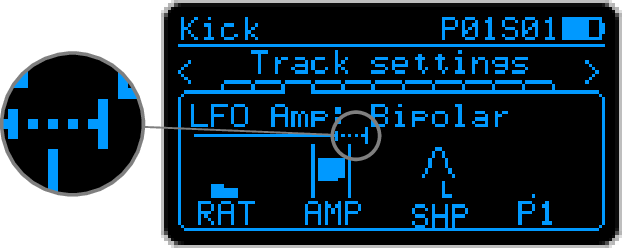
The LFO can substract from the base value (Sub and Bipolar modes):
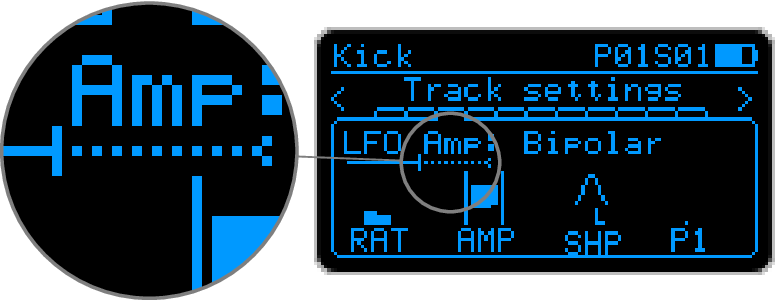
The LFO effect can push the parameter value to the minimum or maximum limits. In such cases an arrow is displayed either at the begining or the end of the bar.
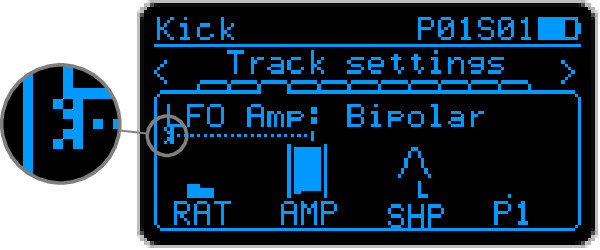
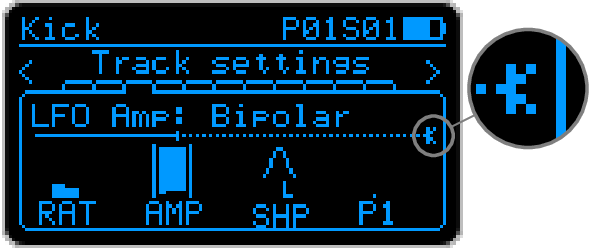
This visualization can be used to understand and finely tune the LFO settings.
LFO Modes
By combining Sync and Loop settings, you can create different behaviors:
Sync |
Loop |
Behavior |
|---|---|---|
Off |
On |
Free-running continuous LFO |
On |
On |
LFO resets on each note, then loops |
On |
Off |
Envelope mode - runs once per note |
Off |
Off |
LFO is disabled at the end of the running cycle |